Minecraft 1.8.8 Free Online: Eaglercraft Browser Guide
Launch Minecraft 1.8.8 in your browser, improve WASM performance, fix dark Nether or cave visuals, and understand common 1.8.8 gameplay questions before you join servers.

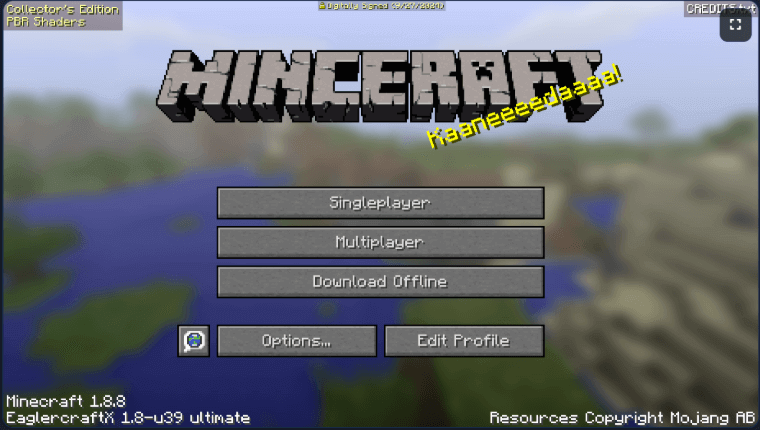
Table of Contents
- What Is Eaglercraft?
- Why Minecraft 1.8.8 Is the Sweet Spot
- How to Start Playing (Step-by-Step)
- Complete Keyboard Controls
- Game Modes Explained
- How to Play Multiplayer
- Best Eaglercraft Servers (2026)
- Tips to Reduce Lag & Improve Performance
- Brightness, Saves, and 1.8.8 Gameplay Fixes
- Eaglercraft vs. Official Minecraft
- Frequently Asked Questions
What Is Eaglercraft?
Eaglercraft is a browser-based way to play Minecraft Java Edition 1.8.8 online. If you are searching for Minecraft 1.8.8, 1.8.8, or Eaglercraft 1.8.8, this guide explains how to launch the game, avoid common loading issues, and choose singleplayer or multiplayer without installing a launcher.
The project supports Minecraft versions 1.5.2 and 1.8.8 (the most popular), with an unofficial 1.12 port also circulating in the community. Because it loads like any other webpage, it bypasses the network filters that block .exe and .jar downloads on school and office networks — which is exactly why it exploded in popularity among students on Chromebooks.
Eaglercraft is open-source. The community has continued extending it with new server software, custom maps, and quality-of-life improvements since the original release. It is not an official Mojang or Microsoft product.
Eaglercraft is completely free to play. No purchase, no subscription, no hidden costs — ever.
Why Minecraft 1.8.8 Is the Sweet Spot
Minecraft has gone through dozens of versions, but 1.8 holds a special place in the community's memory. Released in September 2014, it introduced the combat system, ocean monuments, and a wave of performance improvements that made PvP servers genuinely competitive. Many players still consider it the golden era of multiplayer Minecraft.
EaglerCraftX 1.8.8 — released in December 2022 — is the most feature-complete browser port available. It includes singleplayer mode, survival, creative, and hardcore game modes, The Nether and The End dimensions, villages, mine shafts, dungeons, caves, ravines, and multiple biomes. Customizable skins, settings, and controls are all supported.
Version 1.5.2 is lighter and loads faster on very old hardware, but it lacks singleplayer mode and many of the features that make 1.8.8 feel like the real thing. For most players, 1.8.8 is the obvious choice.
| Version | Singleplayer | Game Modes | Nether & End | Best For |
|---|---|---|---|---|
| 1.5.2 | No | Multiplayer only | No | Older devices, slow internet |
| 1.8.8 ★ | Yes | Survival, Creative, Hardcore | Yes | Most players (recommended) |
| 1.12 (unofficial) | Limited | Varies | Yes | Experimental users |
Need the original lightweight branch? Read the Eaglercraft 1.5.2 guide.
How to Start Playing (Step-by-Step)
Getting into Eaglercraft takes about two minutes of setup and five minutes of loading. Here is exactly what to do.
-
Open a Supported Browser
Chrome, Edge, or Brave give the best performance thanks to their Chromium-based WebAssembly engine. Firefox works well too. Safari on Mac and iOS is supported but slightly slower. Make sure your browser is up to date. -
Visit the Game Page
Head to playeagler.blog and scroll to the game embed. No account creation, no email, no credit card — just open the page. -
Wait for the Game to Load
The first load takes 1–5 minutes while the browser downloads and compiles the WebAssembly files. You may see a black screen — this is completely normal. Do not refresh. Just wait. -
Enter a Username
Type any name you like. No registration, no password, no email. This is your in-game display name. -
Choose Singleplayer or Multiplayer
Click Singleplayer to generate a private world, or Multiplayer to join a community server. For your first session, Singleplayer is the easiest way to learn the controls. -
Start Playing
The game may feel slightly laggy for the first 5–10 minutes while the browser warms up. This is normal and smooths out on its own.
Pro tip: Close all other browser tabs before launching Eaglercraft. Each open tab competes for RAM, and Eaglercraft benefits noticeably from having more memory available.
Complete Keyboard Controls
Eaglercraft uses the same controls as Minecraft Java Edition. If you have played Minecraft before, everything will feel familiar. If you are new, here is the full reference.
| Key | Action |
|---|---|
| W | Move forward |
| A | Strafe left |
| S | Move backward |
| D | Strafe right |
| Space | Jump |
| Shift | Sneak / crouch |
| Double-tap W | Sprint |
| Double-tap Space (Creative) | Toggle flight |
| Key | Action |
|---|---|
| Left Click | Break block / Attack |
| Right Click | Place block / Use item |
| E | Open inventory |
| 1 – 9 | Select hotbar slot |
| Q | Drop item |
| T | Open chat (multiplayer) |
| F5 | Toggle first / third person view |
| F1 | Hide HUD |
| F3 | Debug screen (shows FPS, coordinates) |
| Esc | Pause / Options menu |
You can remap any key in Options → Controls. If your school keyboard is missing certain keys, this is where to fix it.
Game Modes Explained
Eaglercraft 1.8.8 supports three main game modes. You choose when creating a new world in Singleplayer, or the server sets the mode in Multiplayer.
Survival Mode
The classic Minecraft experience. You spawn in a randomly generated world with nothing. Punch trees to collect wood, craft tools, build a shelter before nightfall, and survive against creepers, zombies, skeletons, and spiders. Hunger depletes over time, so you need to find and cook food. This is where most players spend the majority of their time.
Creative Mode
Unlimited blocks, no hunger, no health damage, and the ability to fly. Perfect for building large structures, experimenting with redstone circuits, or just exploring without pressure. You can access every block in the game from the inventory menu.
Hardcore Mode
Survival mode with one life. If you die, the world is deleted. Difficulty is locked to Hard. This is the ultimate challenge for experienced players who want real stakes.
How to Play Multiplayer
Eaglercraft multiplayer works through WebSocket connections (wss://) rather than the TCP connections used by official Minecraft. This means you need Eaglercraft-compatible servers — but there are plenty of active ones.
- Click Multiplayer from the main menu
- Click Add Server or Direct Connect
- Enter the server's WebSocket address (format: wss://server-address)
- Click Join Server
- Register on first visit: type /register yourpassword yourpassword in chat
- On future visits, log in: type /login yourpassword
Most servers require registration to prevent griefing. Use a simple password — avoid special characters for best compatibility. Write it down somewhere; there is no password recovery.
Common Connection Issues
| Problem | Fix |
|---|---|
| Cannot connect to server | Verify the address starts with wss:// — not http:// or ws://. Check that the server is currently online. Try a different browser. |
| Kicked immediately after joining | You may need to register first. Type /register password password in chat as soon as you spawn. |
| Very high ping / rubber-banding | Choose a server geographically closer to you. Close other browser tabs. Lower your render distance to 4–6 chunks. |
Best Eaglercraft Servers (2026)
Server availability changes over time, but these have been consistently active and well-maintained as of early 2026.
| Server | Address | Game Modes | Cross-Platform |
|---|---|---|---|
| KrypticMC | wss://krypticmc.net | Survival, Lifesteal, Bedwars, Skywars, KitPvP, Prison | Yes (Java + Bedrock + Eaglercraft) |
| ArchMC | wss://arch.mc | Minigames, Survival, Creative | Eaglercraft focused |
| EaglerCraft Servers List | topeaglerservers.com | Directory of active servers | Varies |
Server addresses can change. If an address does not work, search for the server name to find the current address. KrypticMC is a good starting point for beginners — it supports cross-platform play, so you will always find people online.
Want to Play with Just Your Friends?
Free hosting platforms like Aternos let you spin up a private Eaglercraft-compatible server in minutes with no credit card required. Share the address with your friends and you have a private world with no strangers.
Tips to Reduce Lag & Improve Performance
Eaglercraft runs in a browser, which means it competes with everything else on your device for resources. These adjustments make a real difference.
Close other browser tabs
Each open tab uses RAM. Eaglercraft benefits significantly from having 1–2 GB of free memory. Close YouTube, Google Docs, and anything else you do not need.
Lower render distance
Go to Options → Video Settings → Render Distance and set it to 4–6 chunks. This is the single biggest performance lever. The default (8–10 chunks) is too high for most Chromebooks.
Use a Chromium-based browser
Chrome, Edge, and Brave use a WebAssembly engine that runs Eaglercraft up to 2× faster than Firefox on the same hardware. If you are on a Chromebook, you are already using Chrome.
Wait out the initial lag
The first 5–10 minutes are always the roughest as the browser JIT-compiles the game code. Do not judge performance until you have been playing for a few minutes.
Disable browser extensions
Ad blockers and script managers can interfere with WebSocket connections and WebAssembly execution. Try disabling them if you experience crashes or connection failures.
Enable hardware acceleration
In Chrome: Settings → System → Use hardware acceleration when available. This lets the browser use your GPU for WebGL rendering, which is essential for smooth gameplay.
Fix Brightness, Nether Darkness, Saves, and 1.8.8 Gameplay Questions
Many Minecraft 1.8.8 searches are support questions after the browser client opens. If caves or the Nether look too dark, start with Options -> Video Settings -> Brightness and move it toward Bright. In a normal desktop Minecraft install, some players edit gamma in options.txt, but browser clients usually do not expose the same file. Treat browser brightness, hardware acceleration, and resource packs as the first fixes.
If Eaglercraft feels slow, prefer the WASM client in Chrome, Edge, or Brave, close heavy tabs, lower render distance, and wait through the first compile. A black screen during the first load is usually the browser preparing WebAssembly, not a failed download.
Singleplayer saves use browser storage. Private windows, cleanup extensions, school device policies, or clearing site data can remove worlds. If the client offers export or EPK backup, use it before you depend on a long survival world.
| Question | Best fit on this page | Action |
|---|---|---|
| Nether or caves are too dark | Browser/video settings support | Raise brightness, disable dark extensions, reload after WASM compile, test Chrome or Edge |
| Does 1.8.8 only have a few biomes? | Gameplay expectation | 1.8.8 has many overworld biomes, but browser worlds can feel repetitive near spawn; explore farther before assuming generation is broken |
| How do I get a saddle? | Vanilla 1.8.8 mechanic | Find saddles in dungeon, mineshaft, Nether fortress, temple, or stronghold chests; they are not craftable in vanilla 1.8.8 |
| How do banners work? | Vanilla 1.8.8 crafting detail | Use wool, sticks, and dyes; complex patterns may be easier in official Java than in some browser clients |
| World disappeared | Browser storage issue | Avoid private mode, do not clear site data, export backups when possible |
Use the browser fix first
A dark Nether or black launch screen rarely means you need an APK, EXE, or another mirror. Fix video settings and browser compatibility before downloading anything.
Separate play intent from wiki intent
This page explains the browser route for Minecraft 1.8.8. Deep item guides such as banner patterns, horse breeding, or Wither Storm commands are better handled as future standalone guides.
Keep this page focused on playing Minecraft 1.8.8 online; use short support answers for gameplay questions and avoid turning it into a full Minecraft wiki.
Eaglercraft vs. Official Minecraft
Eaglercraft is not a replacement for official Minecraft — it is a free, accessible alternative for situations where the official version is unavailable. Here is an honest comparison.
| Feature | Eaglercraft 1.8.8 | Minecraft Java Edition |
|---|---|---|
| Price | Free | $29.99 (one-time) |
| Download required | No | Yes (~1 GB) |
| Account required | No | Yes (Microsoft) |
| Works on Chromebook | Yes | No |
| Instant play | Yes | No |
| Mod support | Limited (server-side) | Full (Forge, Fabric) |
| Shader support | No | Yes |
| Latest Minecraft features | No (capped at 1.8.8) | Yes |
| Multiplayer servers | Eaglercraft-specific | Thousands |
| Official Mojang support | No | Yes |
If you own Minecraft, play Minecraft. Eaglercraft shines when you are on a device that cannot run the official client, when you want to play without spending money, or when you just want to jump in for a quick session without launching a launcher.
Frequently Asked Questions
References & Further Reading
- Minecraft Java Edition 1.8 — Official Minecraft Wiki — Official version history and feature documentation for Minecraft 1.8
- EaglerCraft Server Hosting Guide (2026) — Sealos Blog — Technical deep-dive on setting up your own Eaglercraft server
About the Author
Sophie Hartwell
Sophie is a gaming and technology writer who has covered browser-based gaming, indie games, and accessibility in tech for over six years. She tested Eaglercraft across a 2019 Chromebook, a mid-range Windows laptop, and an iPhone 14 to write this guide. When she is not writing, she is probably building something unnecessarily elaborate in Creative mode.
Tested on: Chromebook (2019), Windows 11 laptop, iOS Safari · Last verified: July 2026
Ready to Play?
Everything you need is right here. No downloads, no accounts, no waiting — just open the game and start your adventure.